Before You Start
To access digital textbooks:
- Parents/Carers must complete the following via QParents:
- Student Resource Scheme (SRS) participation form and
- Online Services consent form.
- Students must log in using their school email.
- Access may take a few days after permissions are submitted.
If these steps are not completed, digital textbooks will not be available.
Frequently Asked Questions
Who needs to complete permissions?
Parents/Carers are responsible for completing permissions in QParents. Students cannot access digital textbooks until this is done.
How do students access digital textbooks?
Students access textbooks through ReadCloud:
- Go to app.readcloud.com
- Enter your school email
- Click 'Log in with MISID'
- Do not enter a password manually
Support and Contacts
Library Support: library@indoorooshs.eq.edu.au
Phone 3327 8335
IT Support: IT_Support@indoorooshs.eq.edu.au
Visit the IT Support Desk before school and during break times.
QParents Administration: QParents@indoorooshs.eq.edu.au
Phone: 3327 8333
Permissions (via QParents)
To access digital textbooks, Parents/Carers must complete the following permissions in QParents:
- Student Resource Scheme (SRS) participation
International students are exempt from this requirement. - Online Services consent for:
- ReadCloud
- Publisher platforms:
- Mainstream: JacPlus, Cambridge GO, NelsonNet, Oxford Digital
- IB: Haese IB, Oxford IB, Pearson IB
Students will not be able to access digital textbooks until these permissions are completed.
If you are unable to access QParents, please contact QParents@indoorooshs.eq.edu.au.
Accessing ReadCloud
Students access their digital textbooks through ReadCloud.
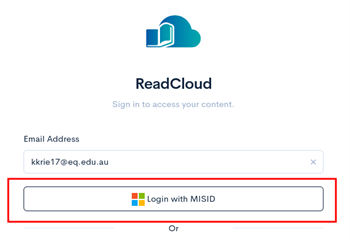
Steps: - Go to app.readcloud.com using an internet browser
- Enter your school email address
- Click Log in with MISID
- Do not enter a password manually
|  ![]() ![]() |
If permissions have only recently been completed, access may take a few days to become available.
Troubleshooting
Invalid username error message![]()
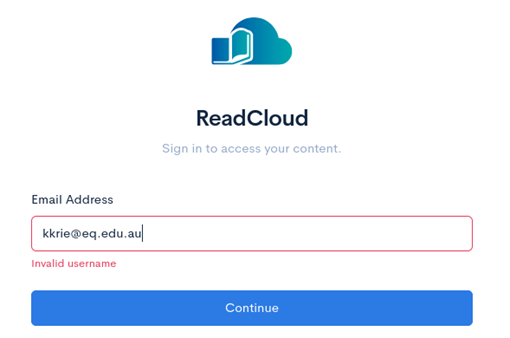
An “Invalid username" message means the student's ReadCloud account has not yet been created.
Before seeking help, check the following:
- The correct school email address has been entered
- All required permissions have been completed in QParents:
- Student Resource Scheme (SRS) participation
- Online Services consent
Parents/Carers can contact QParents Administration if assistance is required or if an error has been made:
QParents@indoorooshs.eq.edu.au | 3327 8333
After permissions are submitted, it may take a few days for the ReadCloud account to be created.
If the error remains after this time, students should visit the Library for support.
Padlocks
![]()
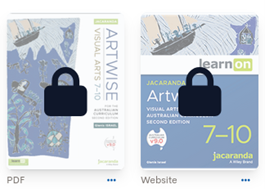
A padlock icon means the publisher has not yet activated the content.
- Padlocks usually disappear within a few days
- If padlocks remain after 5 working days, students should contact the Library for support
No action is required while activation is in progress.
Accessing Cambridge GO, Oxford Digital, NelsonNet
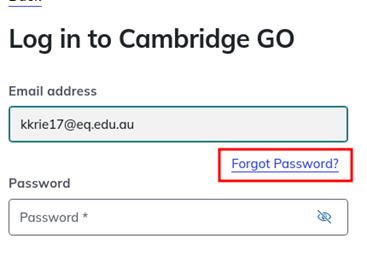
If a login page appears when opening Cambridge GO, Oxford Digital, or NelsonNet, the student needs to set up a password for that platform.
Steps:
- Enter your school email address
- Click Forgot Password
- Follow the link sent to your school email to create a password
This is a one-time setup for each platform. If you do not receive the email or have trouble setting a password, students should seek assistance from Library staff.
| ![]() ![]() 
|
Accessing JacPlus
Accessing JacPlus from ReadCloud should not require a password.
Please do not attempt to reset your password directly with JacPlus.
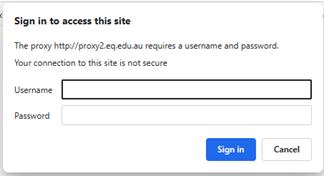
Websites not loading within the school network
If ReadCloud opens to a blank page while at school, this is usually caused by an incorrect school network password.
Students should check that:
- Their current school network password is being used
- They are logged in correctly to the school network
If the issue continues, students can reset their password or get help by: - Using the Password Reset option in the Student Portal
- Asking a teacher for assistance
- Visiting IT Support
- Visiting the Library
| ![]() ![]() 
|
Other problems
All digital textbook content should be active and available once access is set up.
Students should contact the Library if they experience any of the following:
- Content is missing or not activated
- The wrong textbook appears
- The wrong class or cloud is shown
- No content appears in a publisher's interactive website
The Library will investigate and resolve these issues or liaise with IT Support if required.